Upgrade Your Phone Seamlessly
Master the complete process of switching to a new smartphone with expert tips on data backup, secure transfers, and device optimization for a hassle-free experience.
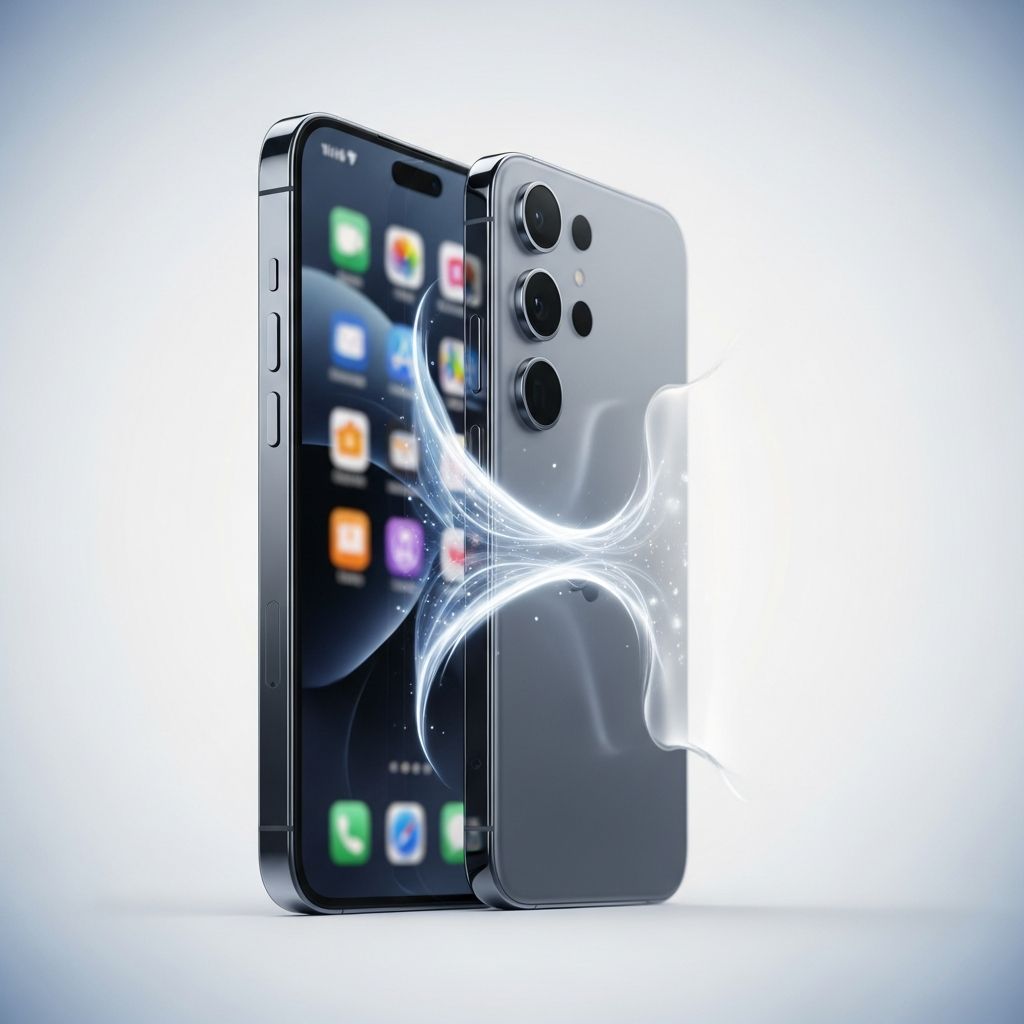
Switching to a new smartphone marks an exciting milestone, promising faster performance, better cameras, and cutting-edge features. However, the transition can turn frustrating if you’re unprepared for data management, security risks, or compatibility issues. This comprehensive guide walks you through every phase of upgrading—from initial planning to enjoying your fresh device. Whether you’re moving within the same ecosystem (iPhone to iPhone or Android to Android) or crossing platforms, these strategies ensure nothing gets lost and your privacy stays intact. We’ll cover backups, transfers, security hardening, and post-setup tweaks, drawing on best practices to make your upgrade smooth and stress-free.
Why Preparation Matters Before Any Upgrade
Modern smartphones store irreplaceable digital lives: family photos, work documents, financial apps, and personalized settings. A botched upgrade risks permanent data loss, exposure of sensitive info, or hours wasted rebuilding from scratch. According to the Federal Trade Commission (FTC), properly backing up and wiping devices prevents identity theft when trading in or selling old phones.1 Preparation also maximizes your new phone’s potential by avoiding common pitfalls like forgotten two-factor authentication codes or incompatible file formats.
Start by assessing your current device. Inventory apps, stored media, and accounts. Decide if you’re keeping your SIM/eSIM, trading in, or recycling. Charge both phones to at least 50% and ensure stable Wi-Fi. These basics set the foundation for success.
Essential Data Backup Strategies
Backing up is non-negotiable—the first and most critical step. Without it, your upgrade becomes a gamble. Cloud services dominate for their accessibility, but hybrid approaches add redundancy.
- Cloud Backups for iOS: iCloud automatically syncs photos, contacts, notes, and app data. Go to Settings > [Your Name] > iCloud > iCloud Backup, then tap ‘Back Up Now.’ Enable full device backups for comprehensive coverage, including Health data and Keychain passwords.
- Cloud Backups for Android: Google One (formerly Drive) handles most needs. Navigate to Settings > Google > Backup, ensuring contacts, SMS, call history, and app data are synced. Samsung users get extras via Smart Switch.
- Local Backups: Connect to a computer—use Finder (macOS) or iTunes (Windows) for iPhones; USB cable with Google Drive desktop app for Android. This guards against cloud outages.
Test restores on a secondary device if possible. For large libraries (e.g., 100GB+ photos), prioritize high-speed internet and consider external drives. Cross-platform users: Export contacts to vCard (.vcf) and photos to Google Photos for universal compatibility.
Mastering Data Transfer Techniques
With backups secure, transfer data directly for speed and fidelity. Wireless methods shine for convenience, while cables offer reliability.
| Method | Best For | Pros | Cons |
|---|---|---|---|
| Quick Start (iOS) | Apple-to-Apple | Transfers everything via Wi-Fi/Bluetooth in ~30 mins | Not for Android |
| Google Nearby Transfer | Android-to-Android | Cable-free, handles apps/settings | Requires same Google account |
| Move to iOS App | Android-to-iPhone | Official Apple tool for cross-platform | One-way only |
| Smart Switch | Samsung ecosystem | Wireless/wired, includes call logs | Limited outside Samsung |
| Cable Direct | All devices | Fastest for large files | Needs compatible cable |
During setup, select ‘Transfer from old device’ on your new phone. Authenticate both devices and monitor progress—expect 15-60 minutes depending on data volume. Handle edge cases like WhatsApp (use its built-in backup) or banking apps (re-authenticate post-transfer). If issues arise, fallback to cloud restores.
Securely Handling SIM, eSIM, and Phone Numbers
Your phone number anchors communication. Mismanaging it leads to downtime or double charges.
- Physical SIM: Power off, eject tray, move to new phone. Test calls/texts immediately.
- eSIM: Contact your carrier for QR code transfer. Android: Settings > Network > SIM; iOS: Cellular > Add eSIM.
- Number Porting: If switching carriers, initiate via new provider with account details. FTC advises verifying port status before canceling old service.1
Destroy unused SIMs by cutting them. Update two-factor apps (e.g., Authy) to avoid lockouts.
Fortifying Security on Your New Device
A new phone is vulnerable until locked down. Official Android guidance stresses immediate updates and biometrics.2
- Update Software: Settings > System > Software Update. Patch vulnerabilities—Malwarebytes notes OEM customizations may delay these.3
- Enable Locks: Set strong PIN (6+ digits), Face ID, or fingerprint. Auto-lock after 1 minute.
- Privacy Tweaks: Review app permissions, enable Find My (iOS)/Find My Device (Android).
- Password Manager: iCloud Keychain or Google Password Manager auto-fills securely.
Install reputable antivirus if desired, but stock protections suffice for most. Enable automatic backups post-setup.
Resetting and Disposing Your Old Phone Safely
Before handing over your old device, erase everything. Factory reset removes apps, accounts, and media—but only after backups!
- iOS: Settings > General > Transfer or Reset iPhone > Erase All Content and Settings. Sign out of iCloud first.
- Android: Settings > System > Reset options > Erase all data. Remove Google account to bypass FRP.
For trade-ins, follow carrier guidelines (e.g., AT&T portals). Donate? Physical destruction for enterprise data. Sell? Document serial numbers.
Optimizing Performance After Setup
Your upgrade isn’t complete until tuned. Expect a ‘new phone boost’ that fades without maintenance.
- Declutter: Uninstall bloatware, organize home screen.
- Battery Health: Enable Optimized Charging, avoid overnight plugs.
- Storage Management: Offload to cloud, clear caches monthly.
Customize notifications and accessibility. Test core functions: camera, battery life, signal.
Frequently Asked Questions (FAQs)
Can I upgrade from Android to iPhone without losing data?
Yes, download Apple’s ‘Move to iOS’ app on your Android during new iPhone setup. It transfers contacts, photos, videos, and more via Wi-Fi.
How long does a full data transfer take?
Typically 20-90 minutes for 50GB, varying by method and connection speed.
What if my old phone is broken?
Rely on cloud backups. Extract data via computer if accessible.
Do I need to remove the case or screen protector?
No, but ensure ports/cameras are accessible for cables.
Will my apps automatically reinstall?
Most yes, via cloud sync. Manually reinstall niche ones.
Conclusion: Enjoy Your Upgraded Experience
Upgrading thoughtfully transforms potential chaos into excitement. By prioritizing backups, secure transfers, and hardening, you’ll leap into new features worry-free. Stay vigilant with updates—your data’s safety evolves with tech. Happy upgrading!
References
- What to know before you upgrade your phone. And how to protect your new one — Federal Trade Commission. 2025-01-01. https://consumer.ftc.gov/consumer-alerts/2025/01/what-know-you-upgrade-your-phone-how-protect-your-new-one
- How to Set Up & Transfer Data to Your New Device — Android.com (Google). Accessed 2026. https://www.android.com/intl/en_uk/articles/set-up-android-device/
- Upgrading your Android device? Read this first — Malwarebytes. 2023-10-01. https://www.malwarebytes.com/blog/news/2023/10/upgrading-your-android-device-read-this-first
Similar Articles







Read full bio of medha deb