13 Essential iPhone Tips and Tricks
Unlock the full potential of your iPhone with these 13 game-changing tips to boost battery life, enhance photography, and streamline daily use.
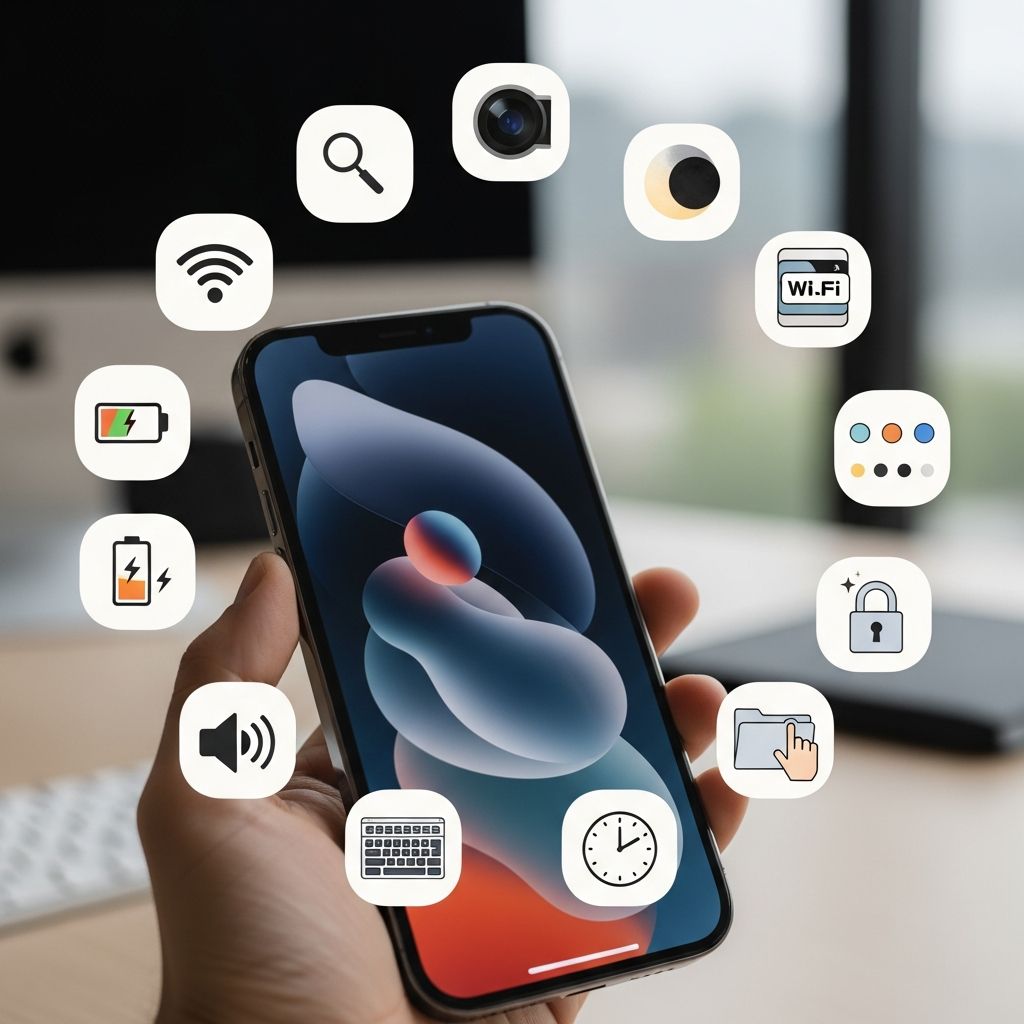
Your iPhone is packed with powerful features that many users overlook. These 13 tips will help you optimize battery usage, capture better images, organize your device efficiently, and uncover hidden functionalities. Whether you’re a new owner or a long-time user, these strategies can transform how you interact with your smartphone on a daily basis.
Mastering Battery Optimization Techniques
Keeping your iPhone powered throughout the day is crucial. Start by enabling Low Power Mode automatically through the Shortcuts app. Navigate to Automation, select battery level, and set a threshold like 20% to activate it without manual intervention. This reduces background activity and extends usage time significantly.
Another key move is reviewing battery usage stats in Settings > Battery. Identify power-hungry apps and restrict their background refresh. Turn off unnecessary location services for apps that don’t need real-time tracking. For instance, limit weather apps to ‘While Using’ instead of ‘Always.’ These adjustments can add hours to your battery life.
- Schedule Low Power Mode for peak usage times.
- Disable haptic feedback on keyboards if you don’t need it.
- Use Wi-Fi over cellular data whenever possible for data-intensive tasks.
Capturing Professional-Quality Photos and Videos
Transform your iPhone into a pro camera with these photography enhancements. Activate Live Text in the Camera app to extract information from real-world objects instantly—copy phone numbers from signs or translate foreign menus on the spot. Point your camera, tap the detected text, and select copy or share.
Experiment with Photographic Styles to customize image tones before shooting. Go to Settings > Camera > Photographic Styles and choose warm, cool, or vibrant presets that match your aesthetic. This applies consistently across your photo library without heavy editing later.
For videos, enable Cinematic Mode on supported models. It automatically blurs backgrounds for a film-like depth effect, with adjustable focus points post-recording. Swipe up on the viewfinder during playback to shift focus seamlessly.
| Feature | Benefit | How to Access |
|---|---|---|
| Live Text | Copy text from images | Camera app > Tap yellow outline |
| Photographic Styles | Custom color grading | Settings > Camera |
| Cinematic Mode | Portrait video effects | Camera > Video mode selector |
Effortless Sharing and Communication Tools
Streamline interactions with smart sharing options. Use Siri to send screen content by saying, ‘Hey Siri, share this with [contact].’ It detects what’s on screen—maps, articles, or photos—and forwards it directly, falling back to a screenshot if needed.
Expand FaceTime to non-Apple users via shareable links. In FaceTime, tap Create Link, copy, and send via text or email. Recipients join from any browser, bridging the gap between ecosystems effortlessly.
AirDrop remains a standout for quick transfers. Swipe down to Control Center, long-press the network tile, and set to ‘Everyone’ or ‘Contacts Only.’ Drag files to nearby devices for instant, secure sharing without internet.
Decluttering and Customizing Your Interface
A tidy home screen boosts productivity. Create custom app libraries by swiping left to the end. Apps auto-sort into categories like Productivity or Social, reducing clutter on your main pages.
Customize widgets for at-a-glance info. Long-press the home screen, tap the ‘+’ icon, and stack weather, calendar, or fitness widgets. Resize them for personalized layouts that update in real-time.
Back Tap offers gesture-based shortcuts. In Settings > Accessibility > Touch > Back Tap, assign double or triple taps to actions like screenshots, flashlight, or app launches. It’s ideal for one-handed use.
Privacy and Security Enhancements
Protect your data with built-in controls. Block app tracking in Settings > Privacy > Tracking by toggling ‘Allow Apps to Request to Track’ off. This prevents cross-app data collection for targeted ads.
Enable Attention Aware Features under Face ID settings. Your device won’t dim or lock if you’re looking at it, and notifications stay silent during active use. Combine with Require Attention for Face ID to ensure only you unlock it.
- Review app permissions regularly.
- Use Sign in with Apple for third-party logins.
- Activate Stolen Device Protection for extra security layers.
Storage Management and File Organization
Free up space without deleting favorites. Offload unused apps in Settings > General > iPhone Storage—they reinstall fresh when needed. Review large attachments in Messages and delete old ones en masse.
Optimize photo storage with iCloud Photos. Enable it to store full-resolution originals in the cloud while keeping smaller versions locally. Regularly empty the ‘Recently Deleted’ album to reclaim space.
Use the Files app for better organization. Tag documents, create folders, and integrate cloud services like Google Drive seamlessly.
Productivity Boosters for Everyday Tasks
Shake to undo typing in any text field—perfect for quick corrections without backspacing. Enable text replacement shortcuts like ‘omw’ for ‘on my way’ to speed up messaging.
Quickly access flashlight or camera from the lock screen. Long-press the respective icons without unlocking. Swipe left for instant camera access.
Fun Siri shortcuts include Harry Potter commands: ‘Lumos’ for flashlight, ‘Accio [app]’ to launch apps, or ‘Silencio’ for Do Not Disturb. Add them in the Shortcuts app for magical efficiency.
Advanced Audio and Media Controls
Convert Live Photos to videos in Photos app. Select a Live Photo, swipe up, and choose ‘Save as Video’ for a 3-second clip, easing playback.
Spatial Audio with Dolby Atmos immerses you in sound. Enable in Settings > Music > Dolby Atmos for supported headphones, enhancing movies and tracks.
Frequently Asked Questions
How do I enable Back Tap on my iPhone?
Go to Settings > Accessibility > Touch > Back Tap. Choose Double Tap or Triple Tap and assign actions like Screenshot or Control Center.
Can I use FaceTime with Android users?
Yes, create a shareable link in FaceTime and send it—they can join via browser.
What’s the best way to save battery?
Automate Low Power Mode, limit background app refresh, and use Wi-Fi preferentially.
How does Live Text work?
Open Camera or Photos, point at text, tap the yellow highlight to copy, translate, or search.
Is app tracking blocking permanent?
You can toggle it anytime in Settings > Privacy > Tracking.
References
- About iOS 18 Updates — Apple Inc. 2024-09-16. https://www.apple.com/ios/ios-18/
- iPhone User Guide — Apple Support. 2025-03-12. https://support.apple.com/guide/iphone/welcome/ios
- Privacy Features in iOS — Apple Privacy. 2024-06-10. https://www.apple.com/privacy/features/
- Camera Capabilities on iPhone — Apple. 2025-01-22. https://www.apple.com/iphone/camera/
Similar Articles








Read full bio of Sneha Tete