Getting Your New Phone Ready on AT&T Network
Complete guide to setting up wireless service on your new device
Purchasing a new smartphone represents an exciting milestone, but before you can start making calls, sending messages, or accessing data, you’ll need to complete the activation process. This critical step connects your device to AT&T’s wireless network and links it to your customer account. Understanding the activation procedure ensures a smooth transition from your old phone to your new one, preventing frustration and downtime. This comprehensive guide walks you through every aspect of the activation journey, whether you’re bringing an existing device to AT&T or starting fresh with a newly purchased phone.
Understanding Device Activation: What It Actually Means
Device activation represents the process of registering your new phone with a wireless carrier’s network. When you activate a device, you’re essentially authorizing it to connect to AT&T’s infrastructure and establishing the connection between your physical device and your wireless account. This registration process allows the network to recognize your phone, route calls and data to the correct device, and enable all the features associated with your service plan.
Many customers wonder whether activation is necessary or if they can simply insert a SIM card and start using their phone. The reality is that activation is a mandatory step for establishing service, though the specific process varies depending on your device type and whether you’re purchasing through AT&T or bringing your own phone. Without proper activation, your device won’t be able to connect to the network, regardless of the SIM card status.
The activation process has evolved significantly over the years. Traditional methods involved calling customer service or visiting a physical store, but modern technology now enables self-service activation through online portals, mobile apps, or automatic setup when you power on your new device. This flexibility means you can often complete activation within minutes from anywhere with an internet connection.
Physical SIM Cards: The Traditional Activation Route
Physical SIM cards remain a common activation method, particularly for Android devices and many iPhone models. A SIM card is a small chip that contains your subscription information and connects your device to AT&T’s network. When you purchase a new phone through AT&T, it typically comes with a pre-installed SIM card, but you may need to activate this card for service to begin.
Installing Your Physical SIM Card
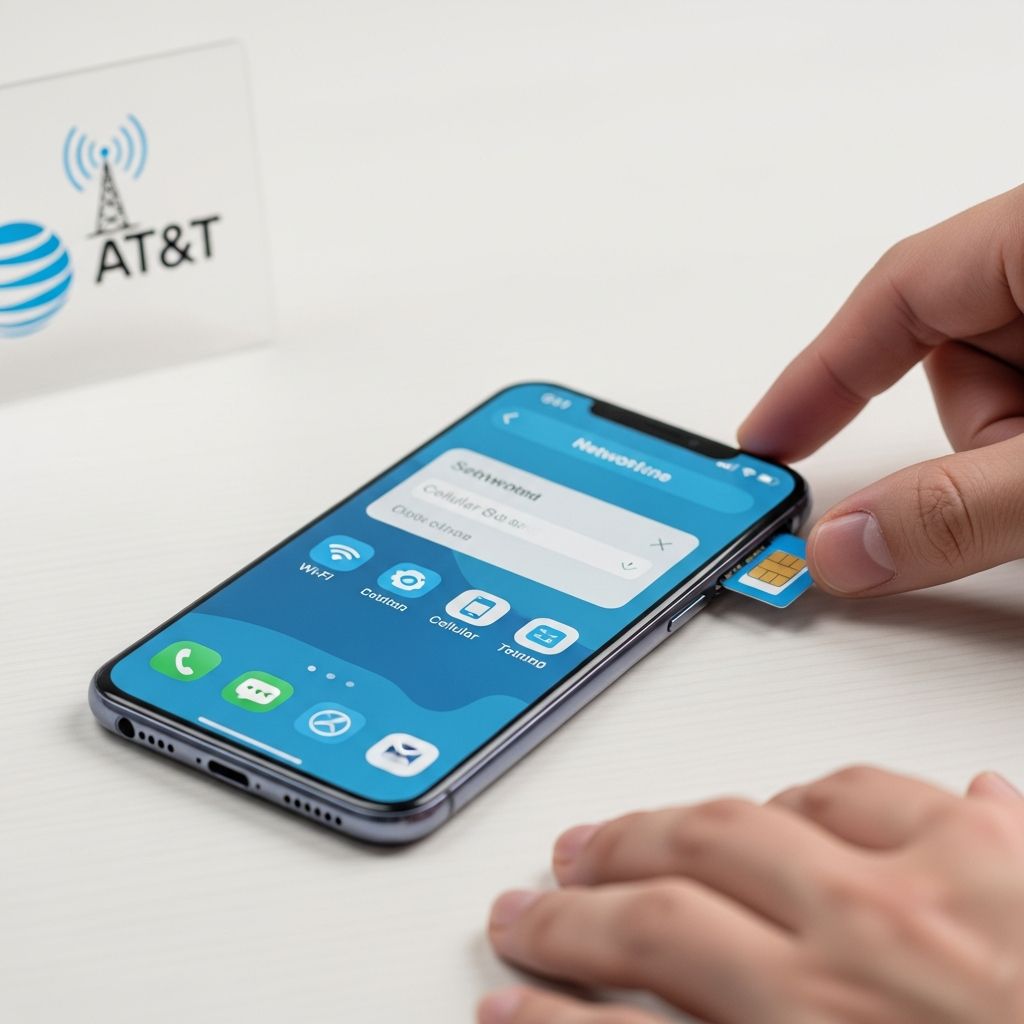
If your device doesn’t come with a pre-installed SIM card, you’ll need to install one yourself. Most modern smartphones have a SIM card slot located on the device’s edge, usually accessed with a small ejector tool that often comes in the device packaging. The installation process is straightforward:
- Locate the SIM card slot on your device, typically marked with a small tray icon
- Use the provided ejector tool or a small paperclip to gently push the release button
- Remove the SIM card tray carefully
- Place your AT&T SIM card into the tray with the gold contacts facing downward
- Reinsert the tray until it clicks securely into place
- Power on your device and wait for network connection
It’s important to note that different SIM cards are designed for different device types. Using an incompatible SIM card may prevent your phone from connecting to AT&T’s network or accessing all available features. AT&T’s support documentation for your specific device model provides detailed visual guides if you need additional clarification during installation.
Activating Your Physical SIM Card
Once your SIM card is physically installed, you’ll need to activate it to begin service. If you purchased your phone through AT&T, the activation may happen automatically when you power on the device for the first time and connect to the network. However, if you’ve purchased a phone independently or are switching from another carrier, you’ll need to manually activate your SIM card.
AT&T provides an online activation portal where you can register your new SIM card and choose your service plan. Visit AT&T’s activation website, select that you have a physical SIM card, and follow the prompts to complete the registration. You’ll be asked to provide personal information, verify your identity, and select your service plan. The entire process typically takes just a few minutes.
If you’re transferring your existing phone number from another carrier, AT&T’s activation portal includes an option to port your number. This process involves providing your current carrier information and authorization codes. The number transfer usually completes within a few business days, though sometimes it can happen more quickly.
Digital eSIM Technology: The Modern Activation Method
eSIM technology represents the future of phone activation and is increasingly becoming the preferred method for device activation. Unlike physical SIM cards, eSIM (embedded SIM) is a digital chip built directly into your device. This technology eliminates the need for physical SIM card slots and provides greater flexibility for switching carriers or managing multiple numbers on a single device.
Understanding eSIM Advantages
eSIM technology offers several advantages over traditional physical SIM cards. First, there’s no physical card to lose or damage. Second, you can download your eSIM profile directly to your device over a Wi-Fi or cellular connection, making activation faster and more convenient. Third, if you travel internationally or need to switch carriers temporarily, you can store multiple eSIM profiles on your device and switch between them instantly without needing a new physical card.
Many newer iPhone models, premium Android devices, smartwatches, and tablets now support eSIM technology. Even if your device has a physical SIM card slot, you might have the option to use an eSIM instead, providing greater flexibility for managing your connectivity.
Downloading and Activating Your eSIM
If you’re activating an eSIM with AT&T, the process differs slightly from physical SIM activation. First, ensure your device is on an active plan with AT&T before attempting to download the eSIM. You cannot download an eSIM without an existing account.
If you’ve purchased your device through AT&T and selected eSIM during checkout, you should receive an activation email with instructions specific to your device. Follow these steps to complete activation:
- Turn on your new device and connect it to a Wi-Fi network
- Open the Settings app and navigate to Cellular or Mobile Network settings
- Select the option to add a cellular plan or download eSIM
- When prompted, either scan the QR code from your activation card or follow the manual entry instructions provided in your activation email
- Enter your personal information and verify your identity as requested
- Complete the setup by following on-screen prompts
- Wait a few moments for the eSIM profile to download and activate
If you’re bringing an unlocked device to AT&T or need to request a new eSIM, you can visit AT&T’s eSIM support page to generate a new eSIM code. This process is particularly useful if you’re switching from another carrier or upgrading your existing AT&T service to a new device.
Transitioning Your Service to a New Device
If you’re upgrading from an existing phone to a new device, the activation process may differ slightly. When you activate a new device on your AT&T account, service on your previous device will typically be suspended automatically. This is an important consideration if you want to keep your old phone active as a backup or secondary device.
Before You Activate Your New Device
Before beginning the activation process, ensure you’re ready to transition service permanently. Complete these preparatory steps:
- Backup all important data from your current phone using iCloud, Google Photos, or your preferred backup method
- Transfer any necessary contacts, messages, photos, and apps to your new device
- Ensure you have your account information and proof of identity readily available
- Verify that your new device is in your physical possession before initiating activation
- Have your current device available if you need to verify information during activation
Taking these steps prevents frustration and ensures a smooth transition with minimal disruption to your service or access to important information.
Managing Your Number Transfer
If you’re switching to AT&T from another carrier, you’ll want to port your existing phone number to maintain continuity with your contacts and existing relationships. AT&T’s activation process includes a specific option for number transfers. You’ll need to provide your current carrier’s account information, phone number, and a PIN or authorization code from your existing carrier.
The number transfer process usually completes within one to three business days. During this window, you may experience brief periods where you can’t receive calls on either carrier, which is entirely normal. Once the transfer completes, your existing number will be active on your new AT&T device and your old carrier’s service will automatically terminate.
Testing Your Activation and Troubleshooting Common Issues
Once you’ve completed the activation process, verify that your service is working properly by attempting to make a test call or send a text message. Most customers should be able to make and receive calls and texts within a few minutes of completing activation. If you’re unable to connect to the network or make calls, several troubleshooting steps can help resolve the issue.
Quick Troubleshooting Steps
- Restart your device completely by powering it off and back on
- Check that Airplane Mode is turned off in your device settings
- Verify that you have a strong signal indicator showing on your device
- Ensure your device is set to the correct network mode (LTE, 5G, or automatic)
- Go to Device Support on AT&T’s website and download any necessary software updates for your specific device model
- Check that your SIM card is inserted correctly with the gold contacts facing the proper direction
- If using eSIM, verify that the profile downloaded completely by checking Settings
When to Contact Customer Support
If you’ve completed these basic troubleshooting steps and still cannot connect to the network, contact AT&T customer support. They can verify that your activation completed successfully, check for any service issues in your area, and manually investigate why your device isn’t connecting. AT&T offers support through phone calls, live chat, their mobile app, or visiting a local store.
Special Activation Scenarios
New Customers with New Phone Numbers
If you’re a new AT&T customer purchasing a new device and requesting a new phone number, the activation process is often fully automatic. Many devices come pre-activated with a new number when purchased from AT&T. Simply power on your new device and follow the on-screen setup prompts. In most cases, you’ll be able to make and receive calls immediately after completing the initial device setup.
Prepaid Service Activation
AT&T’s prepaid service operates slightly differently from postpaid plans. If you’re activating a prepaid device, you may need to visit AT&T’s prepaid activation portal or scan a QR code on your activation card to begin service. Prepaid devices sometimes include a SIM card pre-installed, requiring only activation of the prepaid service plan through the online portal. Payment for your first service period may be required before activation completes.
Tablet and Smartwatch Activation
Tablets and smartwatches that support cellular connectivity can be activated on AT&T’s network using either physical SIM cards or eSIM technology. The activation process is similar to smartphone activation, though you may need to add the device to your existing AT&T account as a connected device rather than switching service from a phone. AT&T offers various data plans for tablets and wearables, separate from your primary phone plan.
Frequently Asked Questions About Device Activation
How long does activation typically take?
Most AT&T device activations complete instantly or within a few minutes. Network connectivity testing may add a few additional minutes. However, if you’re transferring your number from another carrier, the complete process may take one to three business days to finalize.
Can I activate my device without visiting an AT&T store?
Yes, absolutely. AT&T provides a complete self-service activation portal on their website that handles most activation scenarios. You can typically complete the entire process from your home using any device with an internet connection.
What information do I need to have available when activating?
You’ll typically need your personal identification information, proof of identity (such as a driver’s license), your current or existing phone number if transferring service, and account information if you’re adding a device to an existing plan.
Is there a cost associated with device activation?
AT&T does not typically charge a separate activation fee for self-service online activation. However, there may be one-time equipment fees or plan setup charges depending on your specific situation and service plan.
Can I activate my device on multiple carriers?
A physical SIM card can only be active on one carrier at a time. However, eSIM-capable devices can store multiple eSIM profiles from different carriers simultaneously, allowing you to switch between them as needed.
Conclusion: Moving Forward with Your New Device
Activating your new phone on AT&T’s wireless network is a straightforward process designed for convenience and speed. Whether you choose a traditional physical SIM card or embrace the modern eSIM technology, AT&T provides multiple activation paths to suit your specific situation and device type. By understanding the activation process before you begin, you can avoid common pitfalls and ensure a seamless transition to your new device.
The key to successful activation lies in preparation and following the specific instructions for your device type. Take time to backup your important data, gather necessary information, and choose the activation method that works best for your device and needs. Once you’ve completed activation and verified that your service is working properly, you’ll be ready to enjoy all the features and benefits of your new smartphone on AT&T’s reliable network.
References
- Activate and Use Your Device – AT&T Wireless Customer Support — AT&T Inc. 2026. https://www.att.com/support/article/wireless/KM1008711/
- How to Activate a New Phone or Device — AT&T Inc. 2026. https://www.att.com/how-to/activate-wireless-device/
- Activate Your AT&T Wireless & Prepaid Device — AT&T Inc. 2026. https://www.att.com/activations/
- Device Activation Quick Start Guides — AT&T Inc. 2026. https://www.att.com/support/how-to/wireless/get-started/
- Activate Your Prepaid Phone: New Phones, SIM Cards & eSIM — AT&T Inc. 2026. https://www.att.com/prepaid/activate-online/
Similar Articles








Read full bio of Sneha Tete